Getting a LinkedIn headshot from a selfie used to mean waiting for a professional photo day at the office, or booking a photographer for an hour just to update one picture. That is no longer necessary. With the right selfie and the right tool, you can go from a plain phone photo to a LinkedIn-ready headshot in the time it takes to make a coffee.
SelfAI is an AI photo studio and AI photo editor that turns your selfies into professional headshots, portraits and creative photos in minutes, on iOS and in your web browser — including the clean, well-lit headshot style that LinkedIn profiles are built around. This guide covers what LinkedIn actually wants in a profile photo, how to shoot a selfie that gives an AI editor something good to work with, and how to turn it into a headshot you are comfortable putting in front of recruiters and clients.
- LinkedIn recommends a square, head-and-shoulders photo where your face fills most of the frame, at roughly 400 x 400 pixels or larger.
- A single well-lit selfie is enough to start; you do not need a DSLR, a ring light or a studio backdrop.
- SelfAI turns that selfie into a corporate-style headshot with a clean backdrop and studio lighting in about two minutes.
- The AI keeps your face, skin tone and hair recognisable and only restyles the lighting, wardrobe and background.
- Free to try on iOS and web, with premium plans for more styles and higher resolution.
What LinkedIn Actually Wants in a Profile Photo
LinkedIn does not publish a long rulebook, but its own profile photo guidelines are specific about the technical basics. The photo should be square, ideally around 400 x 400 pixels and no larger than 7680 x 4320 pixels, saved as a JPG, PNG or GIF under 8 MB. Because the image displays inside a circle, anything important near the corners of a square crop gets cut off, which is one more reason a plain head-and-shoulders shot works better than a wider photo.
- Square crop, face-forward. Your face and shoulders should fill most of the frame; a small, distant figure reads poorly at thumbnail size.
- Head-and-shoulders framing. Not a full-body shot, not an extreme close-up cropped at the chin.
- A clean, uncluttered background. A plain wall or softly blurred setting keeps attention on your face.
- Even, soft lighting. Front-facing daylight or diffused light avoids harsh shadows across the face.
- A natural, approachable expression. Direct eye contact with the camera and a relaxed smile read as both competent and friendly.
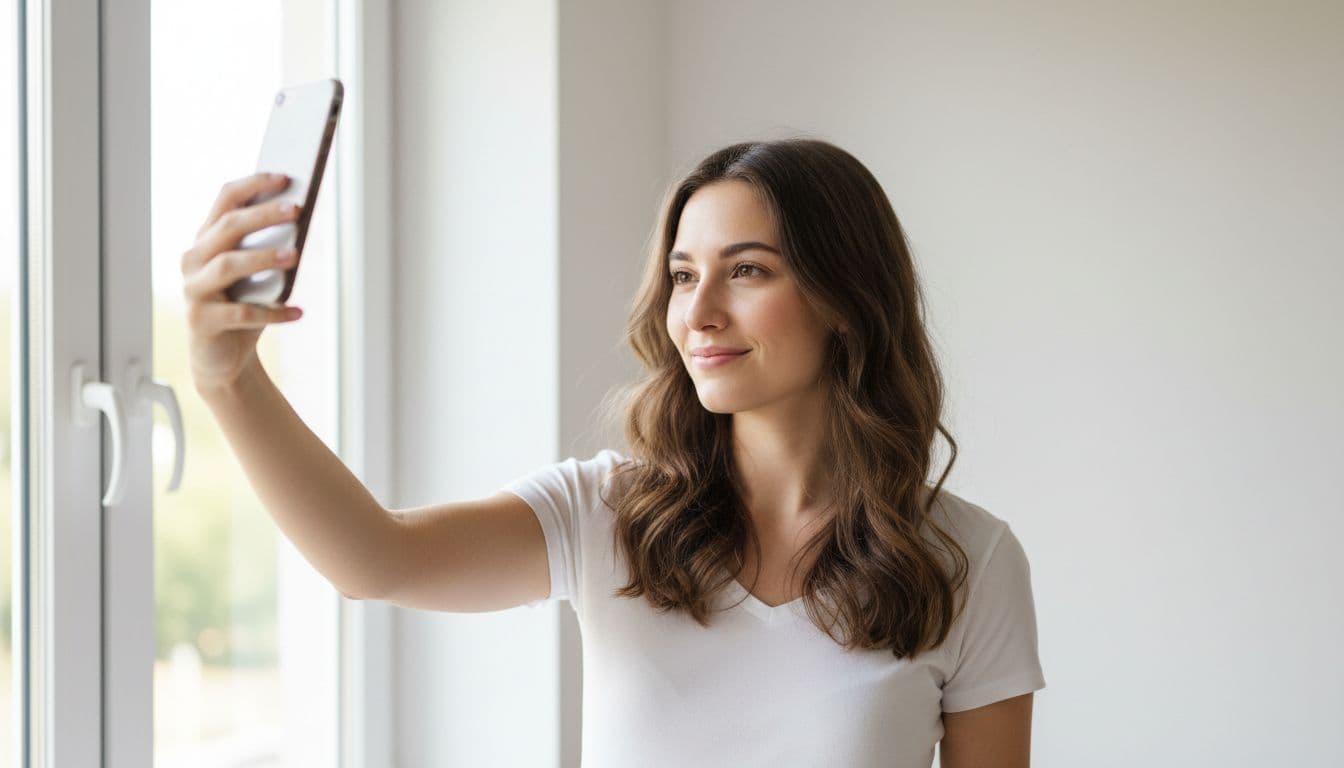
None of that requires professional equipment. It describes, almost exactly, what a good selfie taken near a window already looks like, before any editing happens.
Why a Selfie Is a Perfectly Good Starting Point
A selfie gets a bad reputation in professional contexts, but the format is not the problem. A phone held at arm’s length, in soft daylight, with your face square to the lens, captures exactly the information a good headshot needs: your features, your expression, your skin tone. What a raw selfie usually lacks is the polish LinkedIn photos are judged on, a distracting background, uneven light, or a casual outfit that does not match the setting you are applying for.
That gap between a decent selfie and a finished headshot is exactly what an AI photo editor is built to close. It cannot invent a face that is not there, but it can replace the background, correct the lighting, add appropriate wardrobe, and output the square, well-lit crop LinkedIn is designed around.
How to Take a Selfie That Will Become a Great Headshot
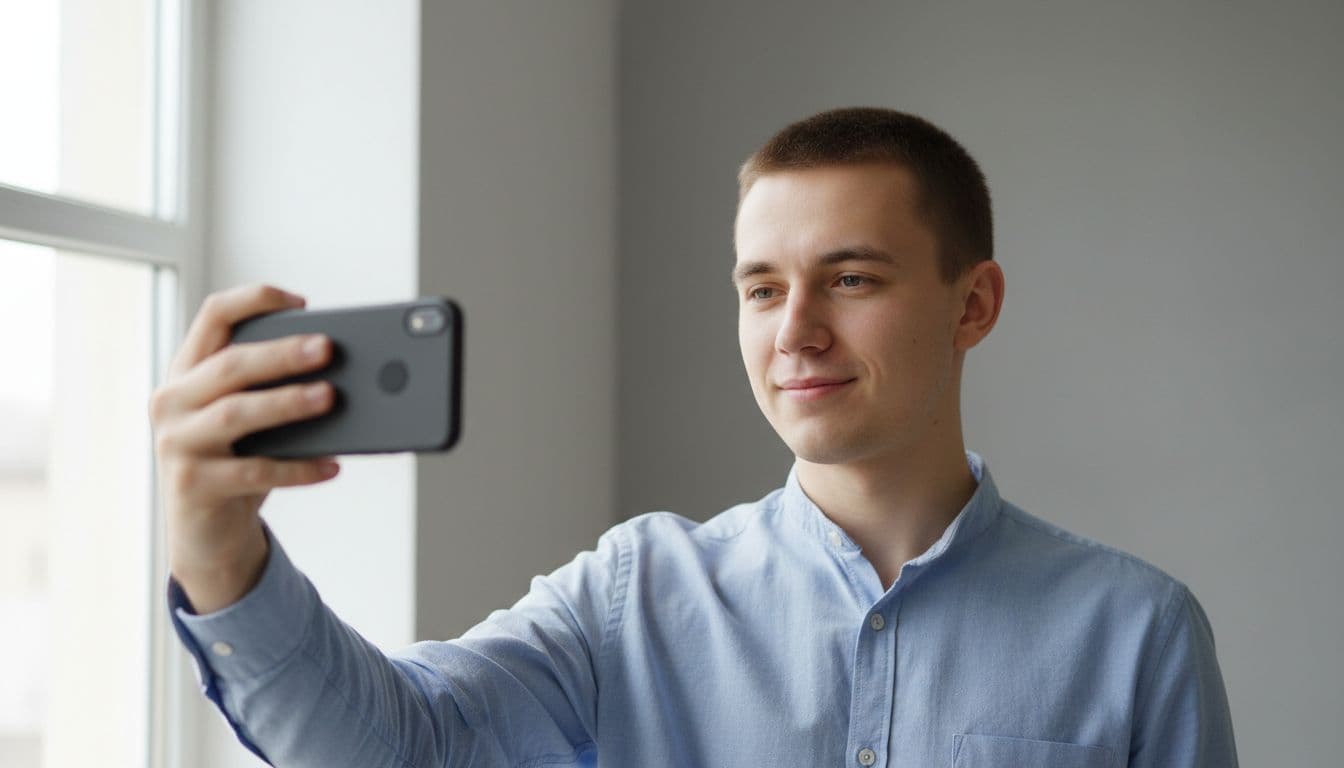
Before you open any editor, spend two minutes on the selfie itself. The better the input, the more natural the finished headshot looks.
- Find a window, not a lamp. Stand facing a window during the day. Soft, even daylight from the front is the single best lighting you can get without equipment.
- Hold the phone at eye level. Angling the camera up or down distorts your face and looks unnatural once the background changes.
- Step back slightly, then crop in. Frame your head and shoulders with a little room around them rather than filling the entire screen with your face.
- Clear your face. No sunglasses, no hat brim across the eyes, hair pushed back so your expression is fully visible.
- Relax your expression. A soft, closed-mouth or gently smiling look works for most industries; save a big grin for a more casual profile photo.
- Take several shots. Blink-free, in-focus photos are common; take five or six and pick the best one before you upload.
If you want more control over focus and exposure before you even open an editor, Apple's guide to taking photos on iPhone covers the basics in a couple of minutes, though the default camera app is already enough for this.
Turning a Selfie From Your Phone Into a LinkedIn Headshot
Once you have a selfie you are happy with, the process in SelfAI takes three steps, the same on the iOS app and the web app.
- Upload one or two selfies. Choose your clearest, best-lit shots. SelfAI works from ordinary phone photos, no special equipment required.
- Choose a corporate or LinkedIn-style headshot look. SelfAI includes presets built around exactly this brief: neutral backdrop, studio-style lighting, professional wardrobe. Business and executive styles are among the 30+ options in the photo styles gallery, and the how it works walkthrough shows the full process with example images.
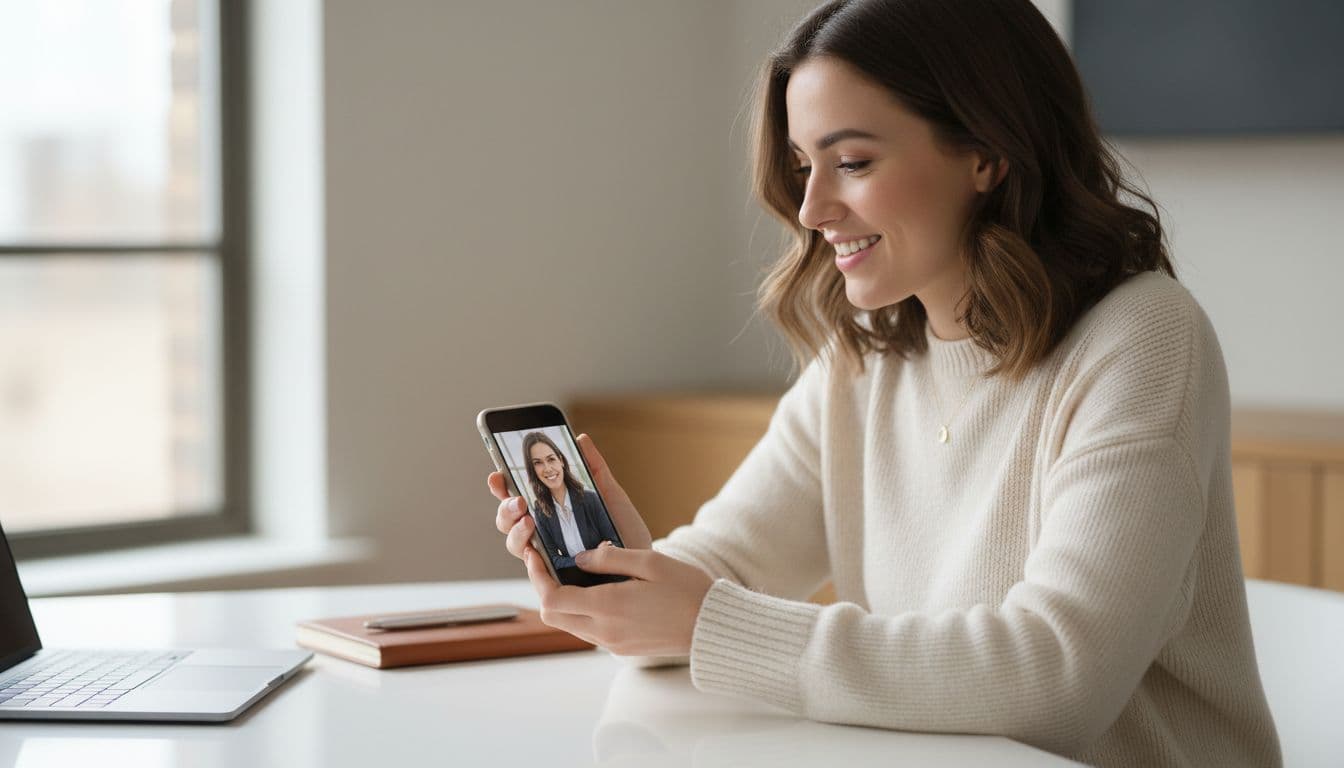
- Generate, crop and download. The AI renders a set of headshots in about two minutes. Pick the one where you look most like yourself, download it square, and upload it straight to your LinkedIn profile.
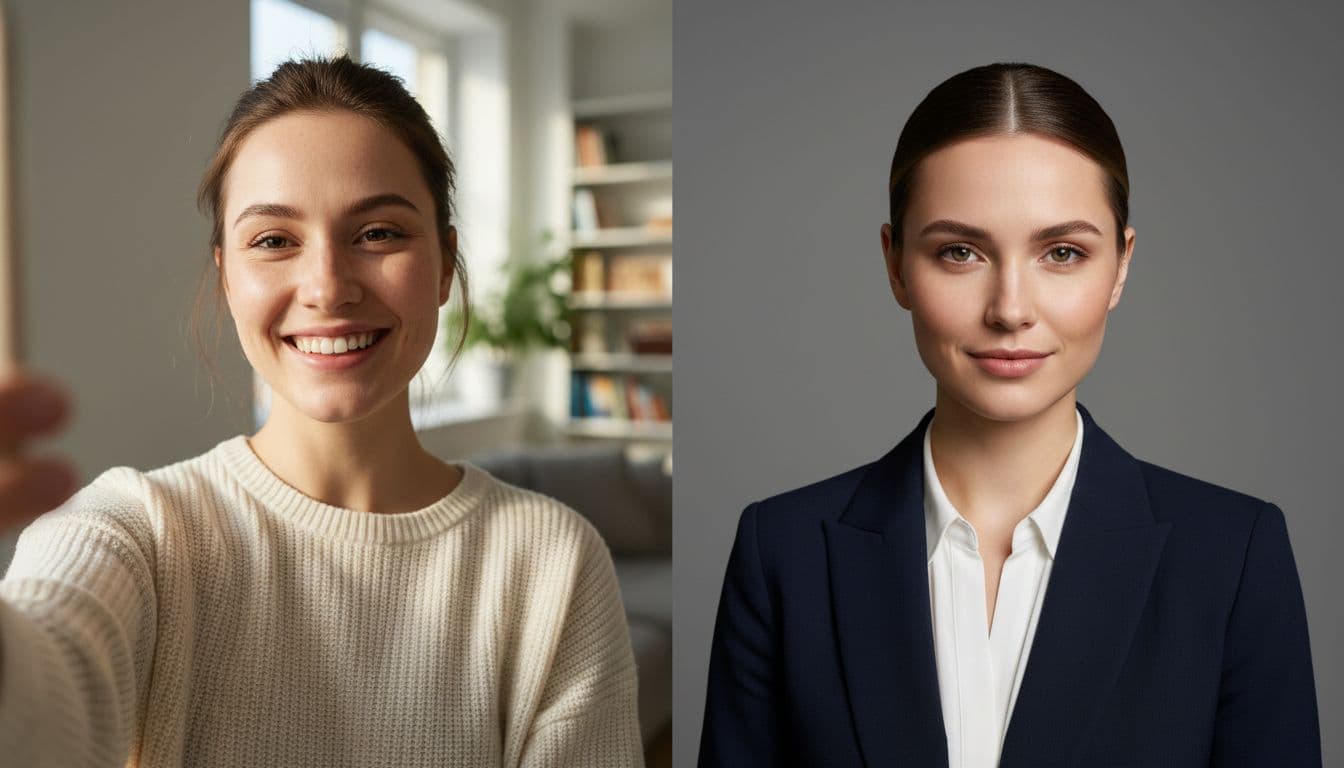
I ran this with a selfie taken next to an apartment window on an overcast afternoon, plain t-shirt, no makeup, nothing staged. The corporate headshot preset returned a photo with a soft grey backdrop and a dark blazer that still looked unmistakably like the same person, just camera-ready. That is the bar to test any AI headshot tool against: does it still look like you on a bad hair day, not like a stranger with your face.
What Changes and What Stays the Same
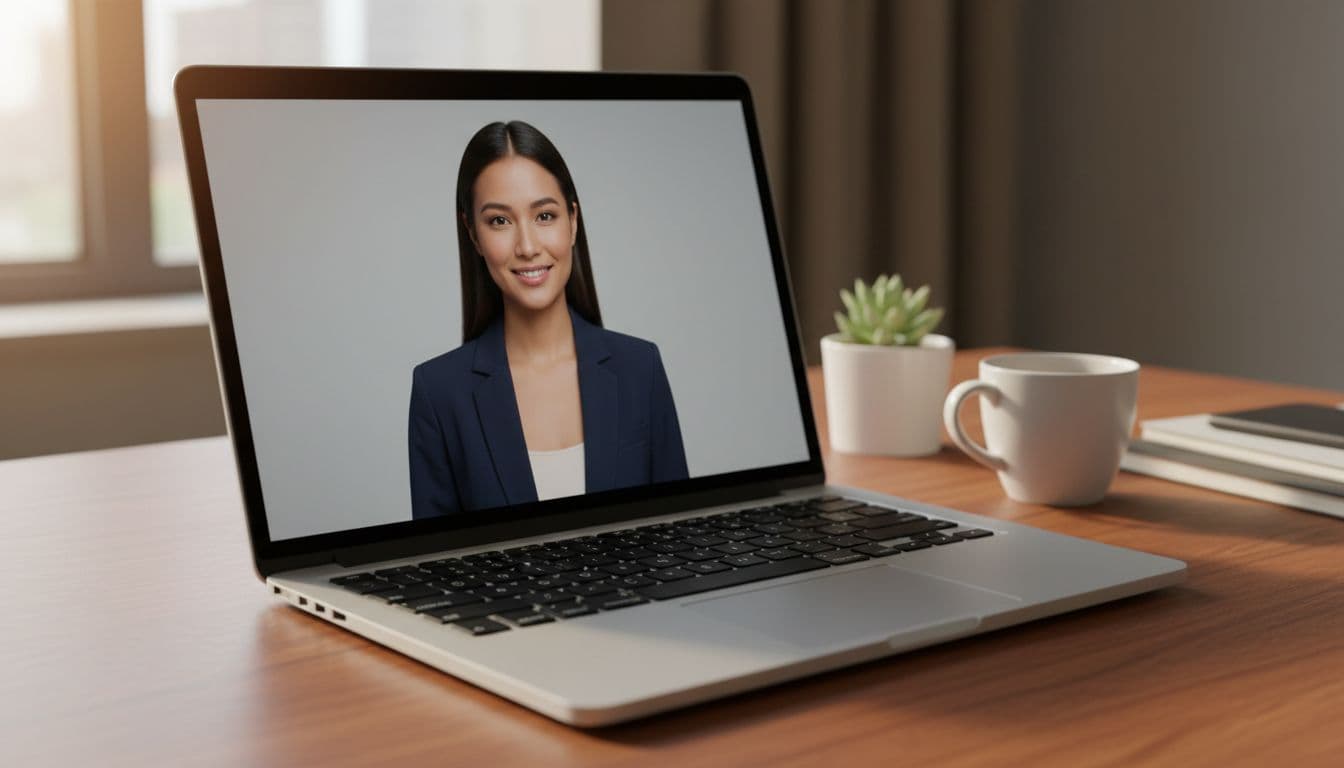
A useful way to think about an AI headshot generator is that it edits the room around you, not you. SelfAI keeps your facial structure, skin tone and hair; what it changes is everything a professional photographer would normally control on the day, the backdrop, the lighting setup, and often the outfit.
That distinction matters for a LinkedIn photo specifically, because the whole point is that colleagues, recruiters and clients recognise you. A headshot that looks flattering but unfamiliar defeats the purpose. If a result looks like a different person, that is a sign to try a different source selfie, better lit and more front-facing, rather than a different style.
Matching Your Headshot to Your Role and Industry
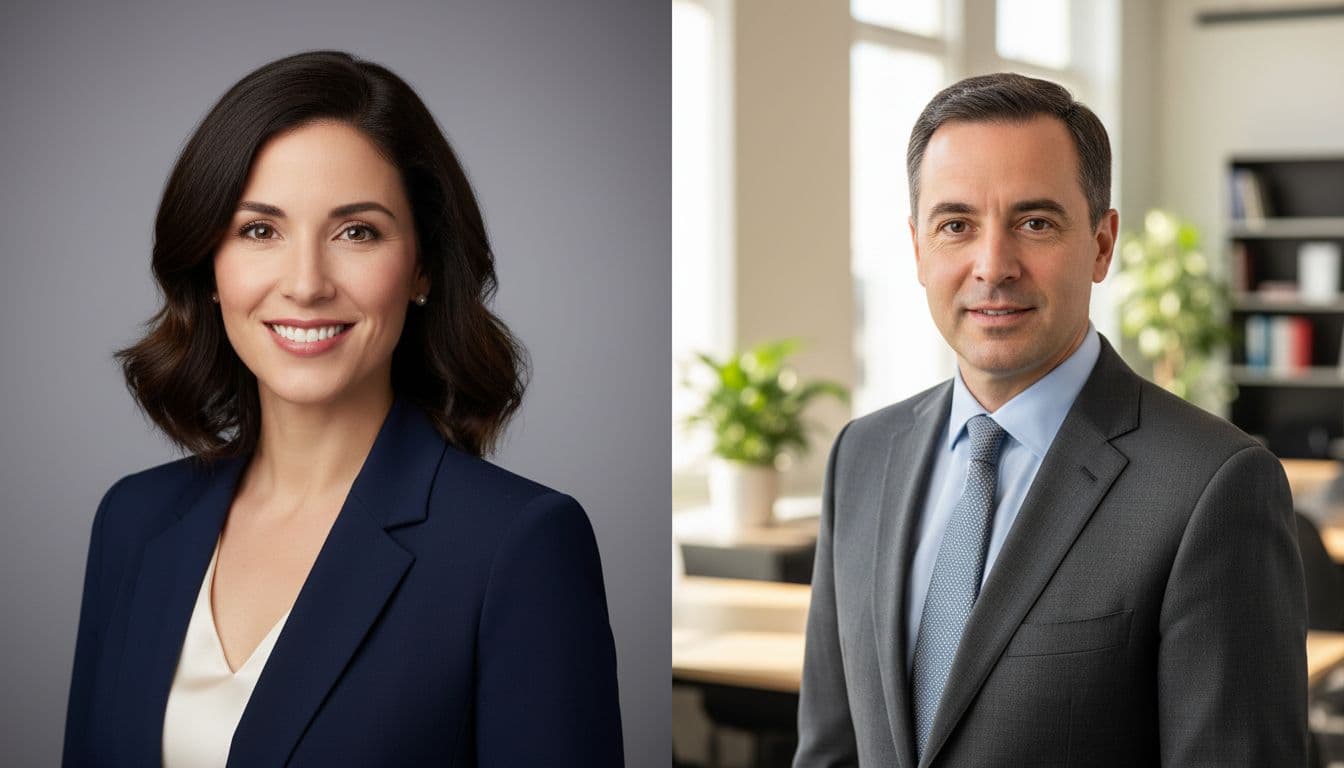
LinkedIn spans every industry, and one headshot style does not fit all of them. A finance or legal profile usually calls for a dark blazer, neutral grey or blue backdrop and minimal expression, closer to a traditional corporate portrait. A startup founder or product manager can afford a softer, natural-light look with a plain wall or blurred office behind them. Creators, designers and consultants often use a warmer, editorial style that still reads as professional but has more personality.
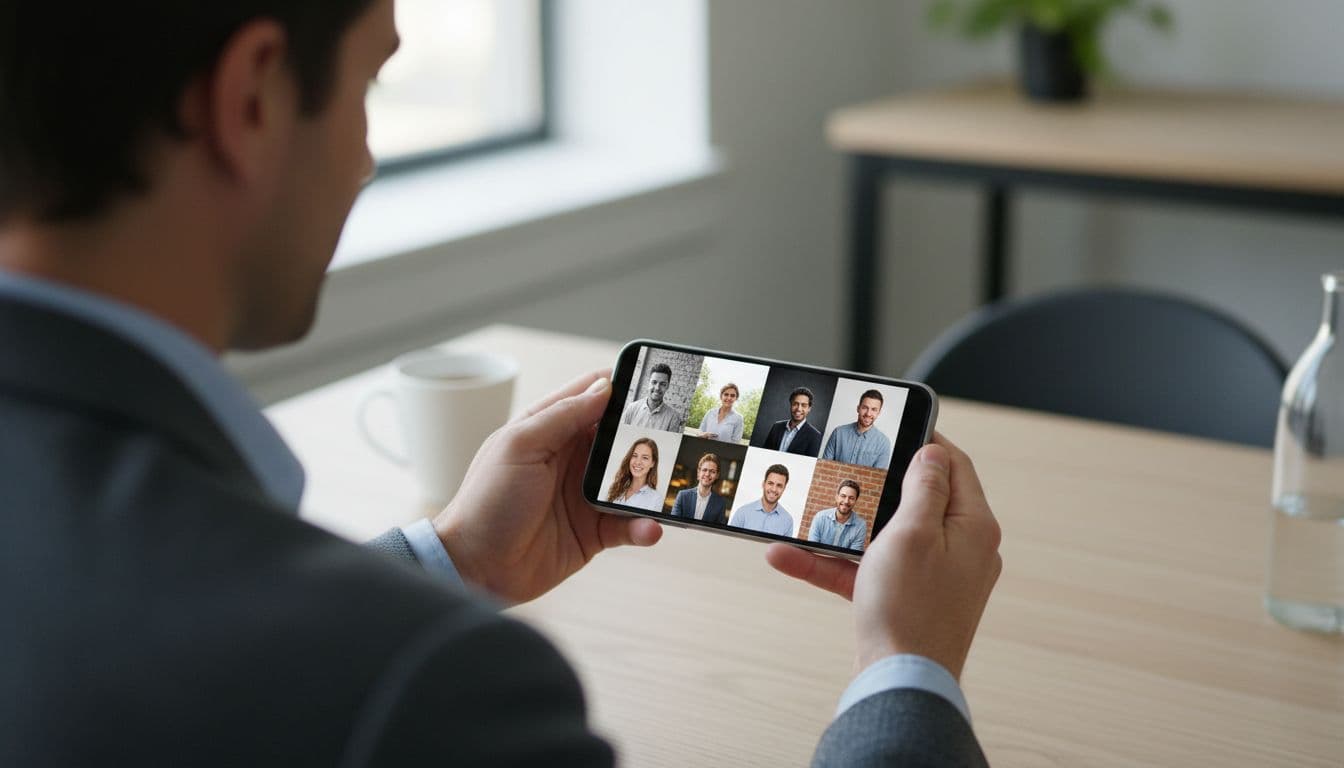
Because generating a headshot takes minutes rather than a full studio booking, it is realistic to try two or three styles from the same selfie and compare which one fits your field before you commit to one for your profile.
Common LinkedIn Headshot Mistakes to Avoid
- Using an old photo. A headshot from five roles ago sets the wrong first impression before anyone reads your profile.
- Cropping out too much or too little. A photo with your whole body, or one cropped at the eyebrows, both look off at thumbnail size.
- A busy or personal background. A living room, a party, or another person in frame pulls attention away from your face.
- Harsh or mixed lighting. Overhead lights or a bright window directly behind you both work against a clear, even-toned face.
- Over-filtering. Heavy skin smoothing or unnatural colour grading reads as fake rather than polished, especially at LinkedIn’s small display sizes.
Frequently Asked Questions
- Can I use a selfie as my LinkedIn headshot?
- Yes. LinkedIn does not require a professional photo session; a well-lit, front-facing selfie works fine, especially once it is styled with a clean background and even lighting.
- What size should a LinkedIn profile photo be?
- LinkedIn recommends a square photo around 400 x 400 pixels, saved as a JPG, PNG or GIF under 8 MB, since the image displays inside a circular crop.
- Do I need a photographer for a LinkedIn headshot?
- No. A phone selfie in good daylight, combined with an AI photo editor like SelfAI, can produce a studio-style headshot in about two minutes without booking a session.
- Will an AI-generated LinkedIn headshot still look like me?
- It should. SelfAI keeps your face, skin tone and hair and only restyles the lighting, background and wardrobe, so the result should look like a well-lit version of you, not someone else.
- What background works best for a LinkedIn headshot?
- A plain or gently blurred neutral background, such as grey, blue or a softly blurred office, keeps the focus on your face rather than the setting.
- Can I make multiple headshot styles from one selfie?
- Yes. SelfAI can generate several styles, such as corporate, natural-light or executive, from the same uploaded selfie, so you can compare which fits your industry before choosing one.
Ready to Update Your LinkedIn Headshot?
A better LinkedIn headshot does not require a calendar invite with a photographer or a studio you have to travel to. It requires one clear selfie, a few minutes, and an editor that respects what makes the photo look like you in the first place.
Open SelfAI on iPhone or in your browser, upload the selfie you already have, and see what a corporate-style headshot looks like on your own face before you decide whether to update your profile. If you also want a fully free, no-account way to try a first edit, our guide to the best free AI photo editor app covers that path too.

Written by
Taro Nakamura
Editor, AI Photography & Mobile Apps
Taro writes about AI photo editing, headshots and the apps that make them easy. He tests every editor he recommends on a real phone, with real selfies, and only keeps the tools that deliver results in minutes without a manual.
More articles by Taro


 Taro Nakamura