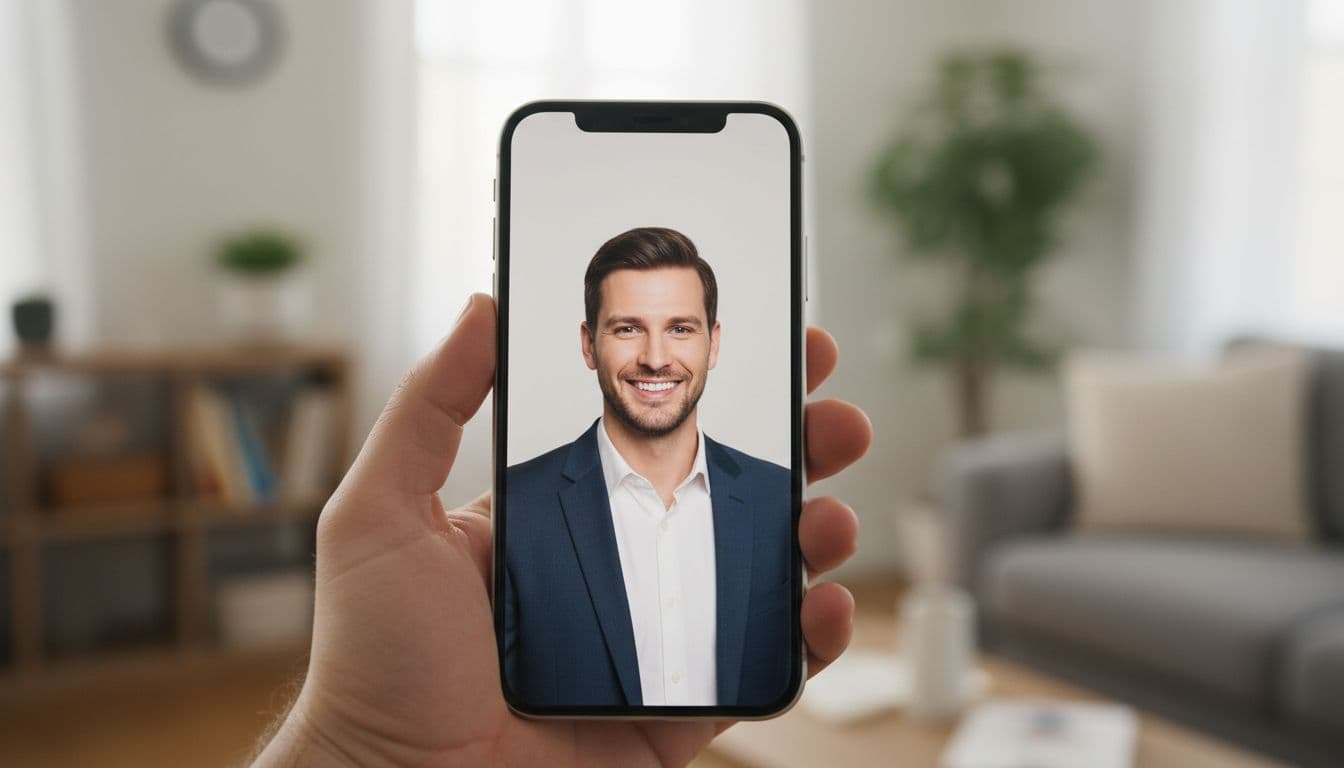
You want a clean photo, not a photo with somebody else’s logo stamped across the corner. That is the whole problem with most free tools: you search for an AI photo editor for iPhone without a watermark, try the first app that promises exactly that, and the export you actually get still carries a faint mark you end up cropping around. This guide explains why that happens, what else a free tier usually holds back, and how to get a genuinely clean export on iPhone and on the web.
SelfAI is an AI photo studio and AI photo editor that turns your selfies into professional headshots, portraits and creative photos in minutes, on iOS and in your web browser. Every photo you generate is yours to keep exactly as it looks on screen, with nothing added after the fact, on the free tier or any paid plan.
- A watermark-free AI photo editor for iPhone should hand you the same photo you see in the preview, with nothing added afterward.
- Free apps add watermarks mainly to protect the free tier and encourage upgrades, not because the technology requires it.
- SelfAI generates AI headshots and portraits on iPhone and on the web, and exports carry no watermark on any plan, including the free one.
- Before you trust a "no watermark" claim, generate one real result and check the full-size file, not just the in-app preview.
What a watermark-free AI photo editor on iPhone actually means
A watermark is a small logo, wordmark or text overlay stamped onto an exported image, usually in a corner or across the middle, to mark it as coming from a free or unlicensed plan. An AI photo editor for iPhone without a watermark simply means the photo you preview is the photo you keep: no logo added on export, on any plan.
That distinction matters more with an AI headshot than with a filtered snapshot, because you usually plan to use the result somewhere formal, such as a LinkedIn profile, a resume or a company page. A stray logo in the corner undoes the professional look you were trying to create, and cropping it out often cuts into the photo itself.
Why free AI photo editor apps add a watermark in the first place
Generating a photo with AI costs the developer real computing time, so most apps need some people to pay eventually. A watermark is the cheapest way to make that ask: it lets everyone try the tool, while making the free result slightly less useful to publish anywhere important, which nudges people toward a subscription.
That is a reasonable business model on its own. The trouble starts when an app is not upfront about it, and you only discover the watermark after you have already spent your one free generation. A worthwhile free tier tells you exactly what a free export looks like before you use it, the same way SelfAI shows every look in the photo styles gallery up front.
What free tiers usually hide besides the watermark
A watermark is the most visible limit, but it is rarely the only one. Before you commit a good selfie to any AI photo editor, it helps to know what else the free tier of many apps quietly restricts.
- Resolution. Some free exports are downsized so much that the photo looks soft once you print it or use it at full size on a profile page.
- Style choice. A handful of filters may be free, while the styles people actually search for, such as a corporate headshot or an editorial black-and-white look, sit behind a paywall.
- Number of results. You might get one export instead of a full set, which makes it hard to compare a natural-light version against a studio version before you choose.
- Face accuracy. Free tiers on some apps run a lighter version of the model, which can make the result look less like you than the paid version does.
How to get an AI photo editor for iPhone without a watermark
SelfAI was built around the opposite approach: no logo on any export, on the free tier or a paid plan. Upload one or two clear selfies, choose from more than 30 photo styles, from corporate headshots to natural-light portraits, and the AI photo studio renders a full set of results in about two minutes. What you see in the preview is the file you download.
Download SelfAI for iPhone from the App Store, or open the SelfAI web app in Safari or Chrome if you would rather work from a laptop. Both versions produce the same watermark-free photos, and a set you start on your phone stays available if you open the browser version later.
Export a clean AI headshot in three steps
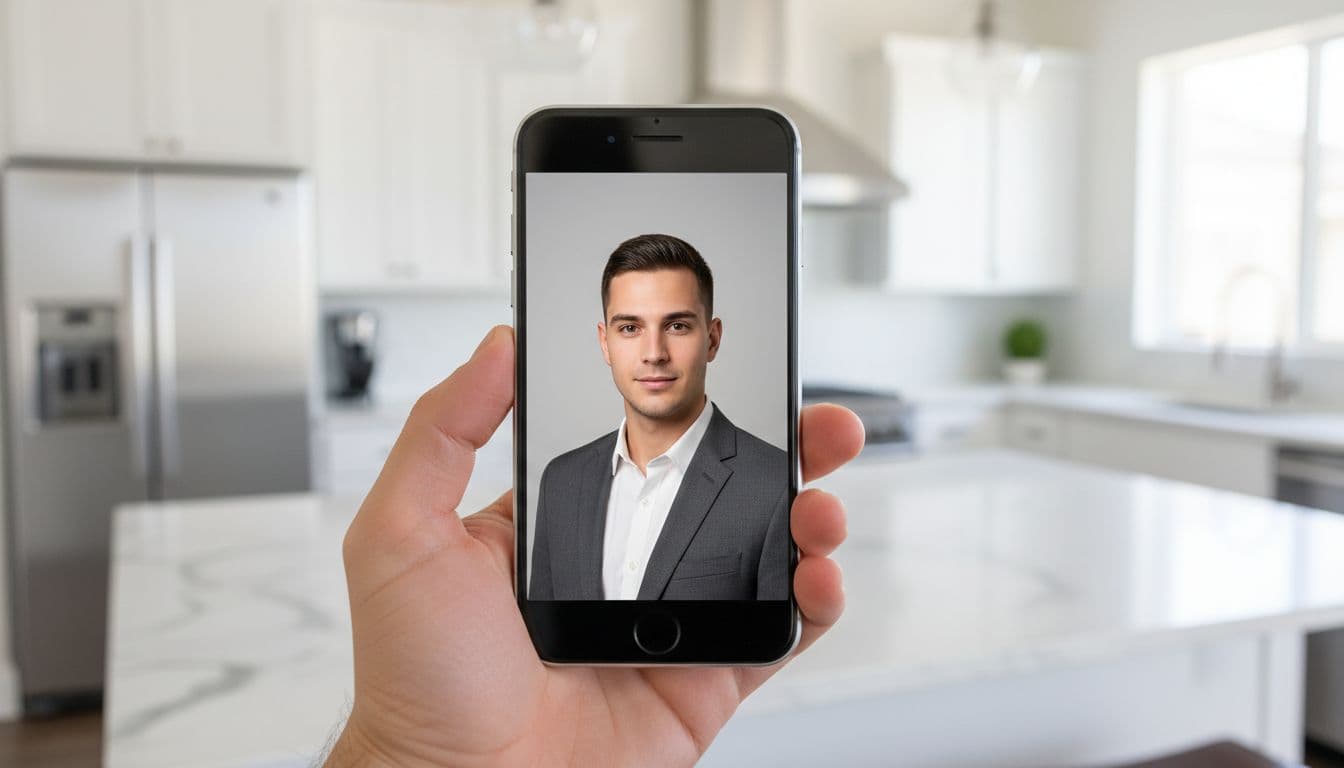
- Pick a selfie. One or two clear, front-facing photos in good light, without sunglasses or a hat, give the AI photo editor the most to work with.
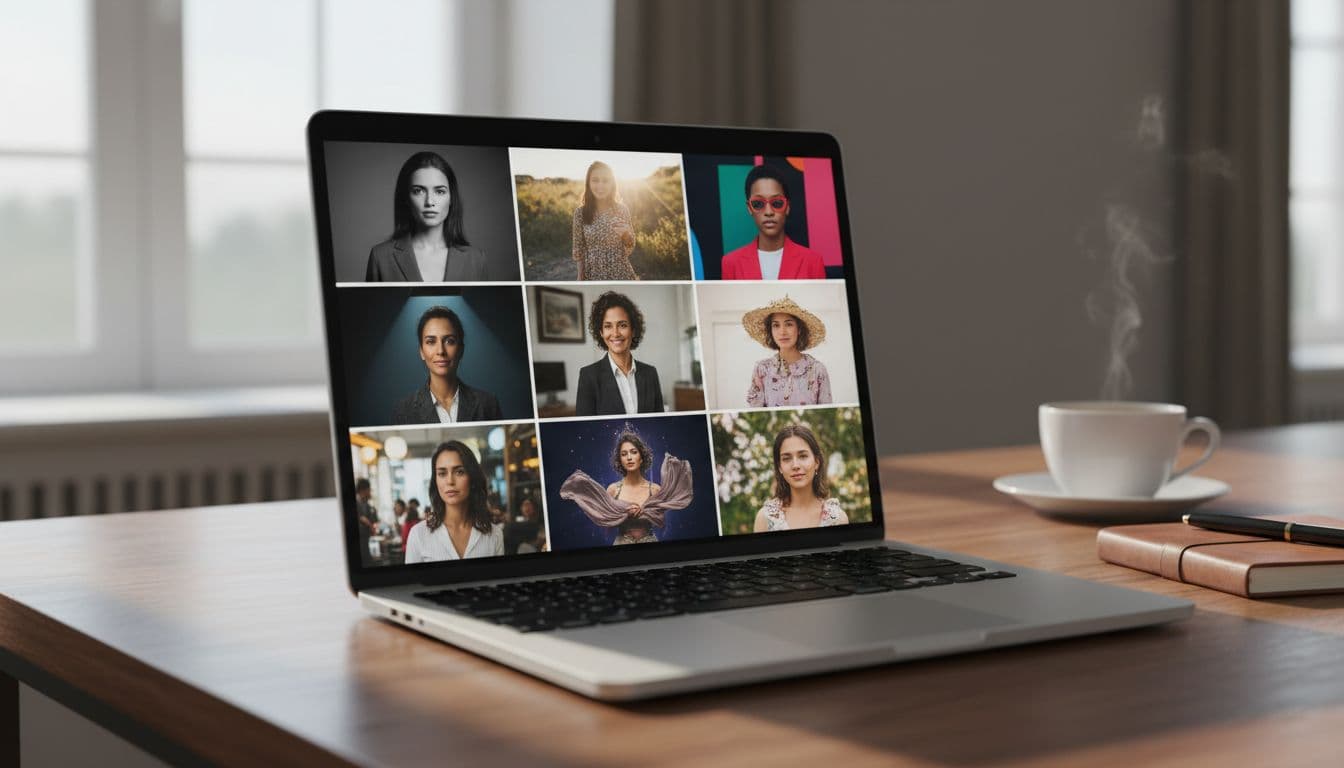
- Choose a style. Corporate headshot, natural light, monochrome or another look from the gallery. You can select several and compare them side by side.
- Generate and download. SelfAI renders your set in about two minutes. Download the version you like exactly as shown, with no watermark and no extra step required.
iPhone app or web app: which keeps your export watermark-free
Both versions of SelfAI export the same way, so this is mostly a question of habit rather than quality. Use the iPhone app when your selfies already live on your phone and you want to update a profile picture between other things, straight from the App Store download.
Use the web app when you are comparing several styles on a bigger screen, preparing photos for a small team, or simply prefer a laptop. Either way, nothing you export from SelfAI carries a watermark, an upsell banner or an added border, on the free tier or a paid plan.
What to check before you trust any no-watermark claim
Marketing copy is easy to write and free to change, so it is worth verifying a no-watermark claim yourself rather than taking it on faith. Generate one real result on the free tier and open the full-size file, not the in-app preview, since some apps hide a watermark that only appears in the final export.
Zoom into the corners and the center of that file, the two places a logo usually hides, and read the pricing page before you commit. Some apps reserve a genuinely clean export for a paid plan while advertising a free trial elsewhere. Apple documents how these auto-renewable subscriptions are meant to be disclosed before you buy, which is worth knowing regardless of which app you choose.
Simple habits that make any AI photo editor work better
The editor does the heavy lifting, but a slightly better starting selfie makes every style look sharper, watermark or not. Face a window for soft, even daylight, hold the phone at eye level for a natural angle, and skip sunglasses or heavy filters so the AI can see your actual face and skin tone.
A calm, natural expression works for nearly every style, from a corporate headshot to a natural-light portrait, and it gives you more finished-looking options to choose from once your set is ready. The idea behind all of this is not new: photographers and software companies have used digital watermarking for decades, first to protect ownership, later as a simple way to gate a freemium product.
Frequently asked questions
- Is there an AI photo editor for iPhone with no watermark?
- Yes. SelfAI is an AI photo editor and AI photo studio for iPhone and the web that never adds a watermark, logo or upsell banner to an exported photo, on the free tier or a paid plan.
- Why do free AI photo editors put a watermark on my photos?
- A watermark protects the free tier and nudges people toward a paid plan, since generating an AI photo costs real computing time. It is a common approach, but the best apps explain it clearly before you spend your one free export.
- Does SelfAI charge to remove the watermark?
- There is nothing to remove. SelfAI photos never carry a watermark in the first place, on the free tier or on any paid plan, so what you preview is the exact file you download.
- Can I use SelfAI on iPhone and in a browser?
- Yes. SelfAI is available on the App Store for iPhone and iPad, and as a web app for Safari, Chrome or any modern browser, with the same watermark-free results on both.
- Will exporting without a watermark change my photo quality?
- No. SelfAI exports the same resolution and detail you see in the preview. Removing a watermark elsewhere often means cropping into the image, which SelfAI avoids by never adding one.
- How can you tell if a no-watermark claim is genuine?
- Generate one real result on the free tier and open the full-size file rather than the preview. Check the corners and the center for a hidden logo before you trust the claim, and read the pricing page for exceptions.
- What happens to my photos after I export them from SelfAI?
- Uploads are encrypted in transit and used only to generate your results. You control every export, and the full details are in the SelfAI privacy policy.
Ready for a watermark-free AI photo editor on iPhone?
A good AI photo editor should hand you the exact photo you saw in the preview, nothing stamped on top and nothing held back until you pay. SelfAI does that on the free tier and on every plan after it, on iPhone and in your browser.
Pick a selfie you already have, choose a style from the photo styles gallery, and see your first clean export in about two minutes. If you have not tried an AI photo editor before, our guide to the best free AI photo editor app with no sign-up is a good place to start, and our roundup of the best AI photo app in 2026 covers how SelfAI compares across the whole category.

Written by
Taro Nakamura
Editor, AI Photography & Mobile Apps
Taro writes about AI photo editing, headshots and the apps that make them easy. He tests every editor he recommends on a real phone, with real selfies, and only keeps the tools that deliver results in minutes without a manual.
More articles by Taro






 Taro Nakamura